 Auto Purchase Orders Auto Purchase Orders
 Sync your purchase orders to QuickBooks Online to keep your accounting records up to date. You can create Bills or Purchase Orders in QuickBooks automatically or with one click.
Before you can sync purchase orders, connect your QuickBooks Online account.
After connecting, you’ll see the QuickBooks settings panel where you can configure how syncing works.
Choose what type of record to create in QuickBooks:
| Mode | Description |
|---|---|
| Create as Bill | Creates a Bill in QuickBooks. Bills post to your books and create a liability. |
| Create as Purchase Order | Creates a Purchase Order in QuickBooks. POs are non-posting and track intended purchases. |
Select the expense account where products will be recorded. This is required before you can sync purchase orders.
Choose which date appears on the QuickBooks record:
Choose what content appears in the private note field in QuickBooks:
Turn this on to use your purchase order number as the document reference number in QuickBooks. This makes it easier to find and match records between systems.
QuickBooks limits document numbers to 21 characters. If your PO number is longer, it will be shortened.
After configuring your settings, you can sync individual purchase orders to QuickBooks.
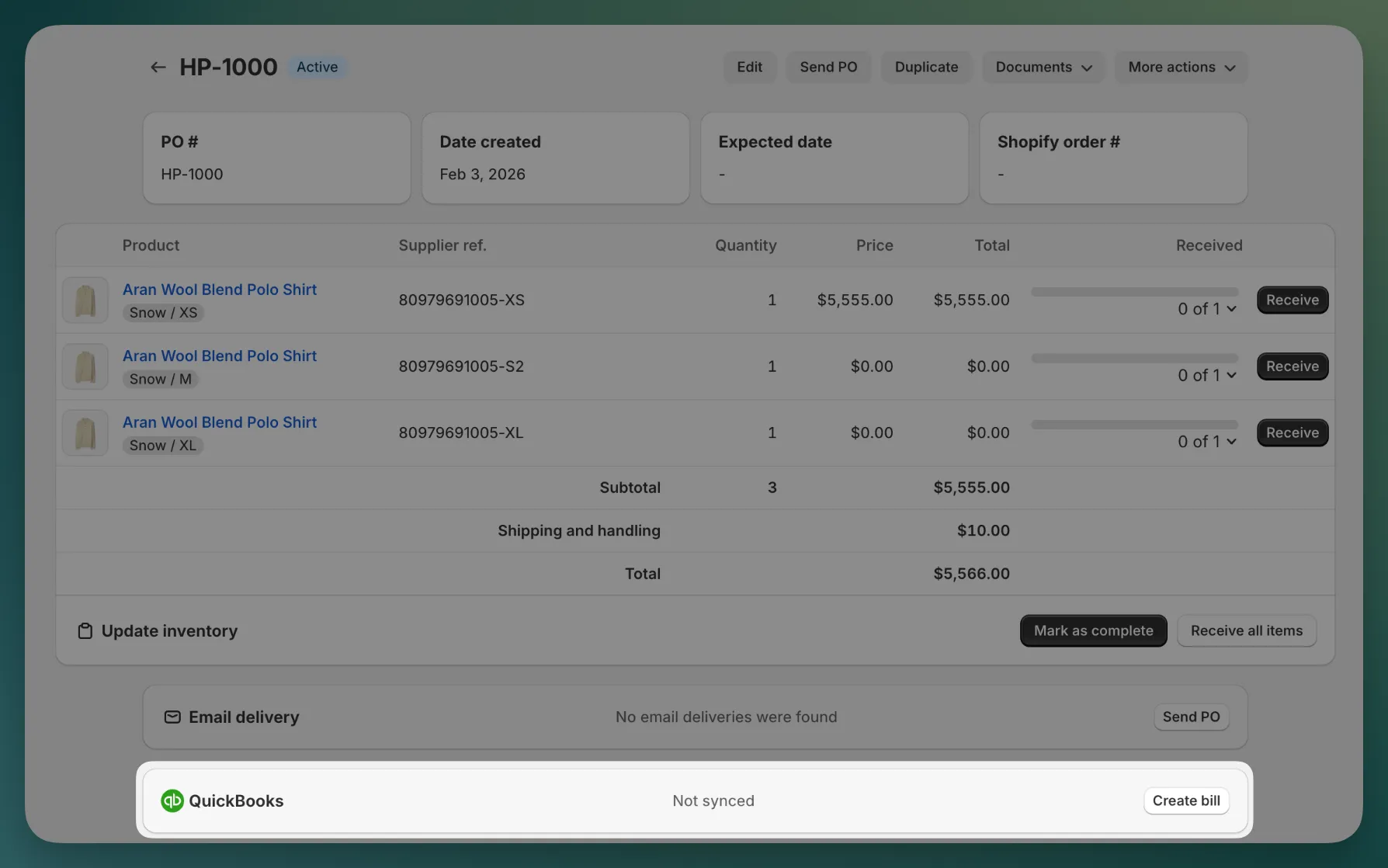
The sync status updates to show the record was created in QuickBooks. You can also see this event in the purchase order’s timeline.
If your transaction date is set to “PO completed date”, the purchase order must be completed before you can sync it manually.
Save time by automatically syncing purchase orders to QuickBooks.
| Trigger event | When it syncs |
|---|---|
| On PO creation | Immediately when a purchase order is created |
| On PO completion | When a purchase order is marked as completed |
With automatic sync enabled, new purchase orders sync to QuickBooks without any manual steps. You’ll see the sync recorded in each purchase order’s timeline.
When you sync a purchase order, the following information is sent to QuickBooks: